Mobile phone shop management

Run your mobile shop, one IMEI at a time.

Mobile Munshi by CODEESK is shop-management software for mobile phone shops. Track every phone by IMEI, record used-phone purchases with the seller's CNIC, photos and signature, sell with cash, credit or split payments, and keep the khata, cash book and daily closing in one place, in English and Urdu.

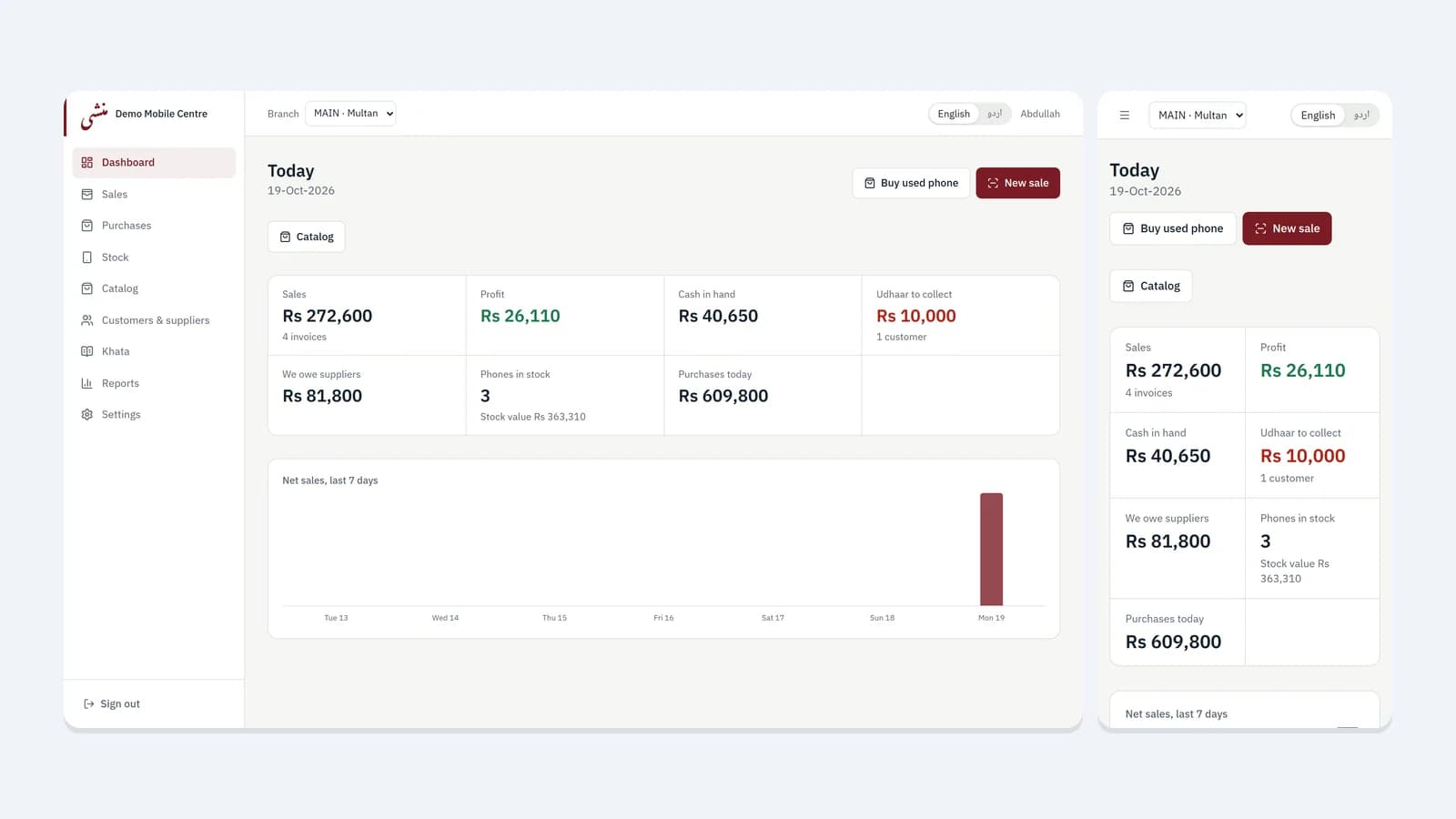
Mobile Munshi dashboard on a desktop screen next to the same dashboard on a phone-sized screen, showing sales, profit, cash in hand and udhaar to collect.

Overview

Everything a phone shop writes in a register, in one workspace

Keep stock by IMEI, buy and sell phones and accessories, follow udhaar and what you owe suppliers, and check the cash in the drawer at the end of the day. It is built for the way phone shops work, including used-phone buying, split payments and wallet payments such as Easypaisa and JazzCash.

Key features

From the first purchase to the last rupee of the day

01

Every phone tracked by IMEI

Keep each phone as its own record with its IMEI, condition, PTA status, battery health and photos. Check any IMEI before you buy or sell, scan it with the phone's camera, and see the history of every transaction that phone has been part of. Accessories are tracked by SKU and quantity.
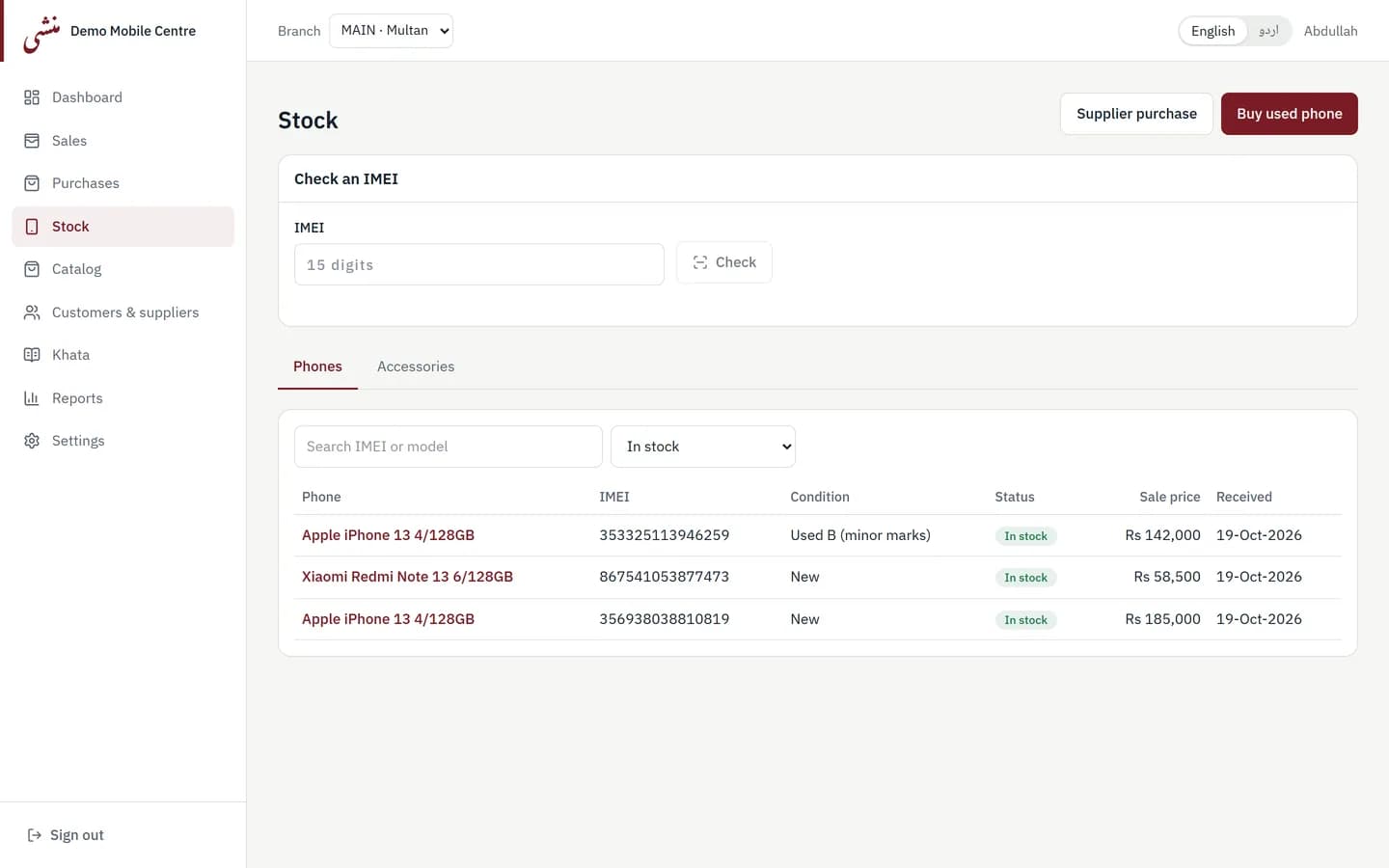
Mobile Munshi stock screen with an IMEI check box and a list of phones in stock showing model, IMEI, condition, status, sale price and date received.
Phones in stock by IMEI, with an IMEI check.

02

Used-phone purchases with seller verification

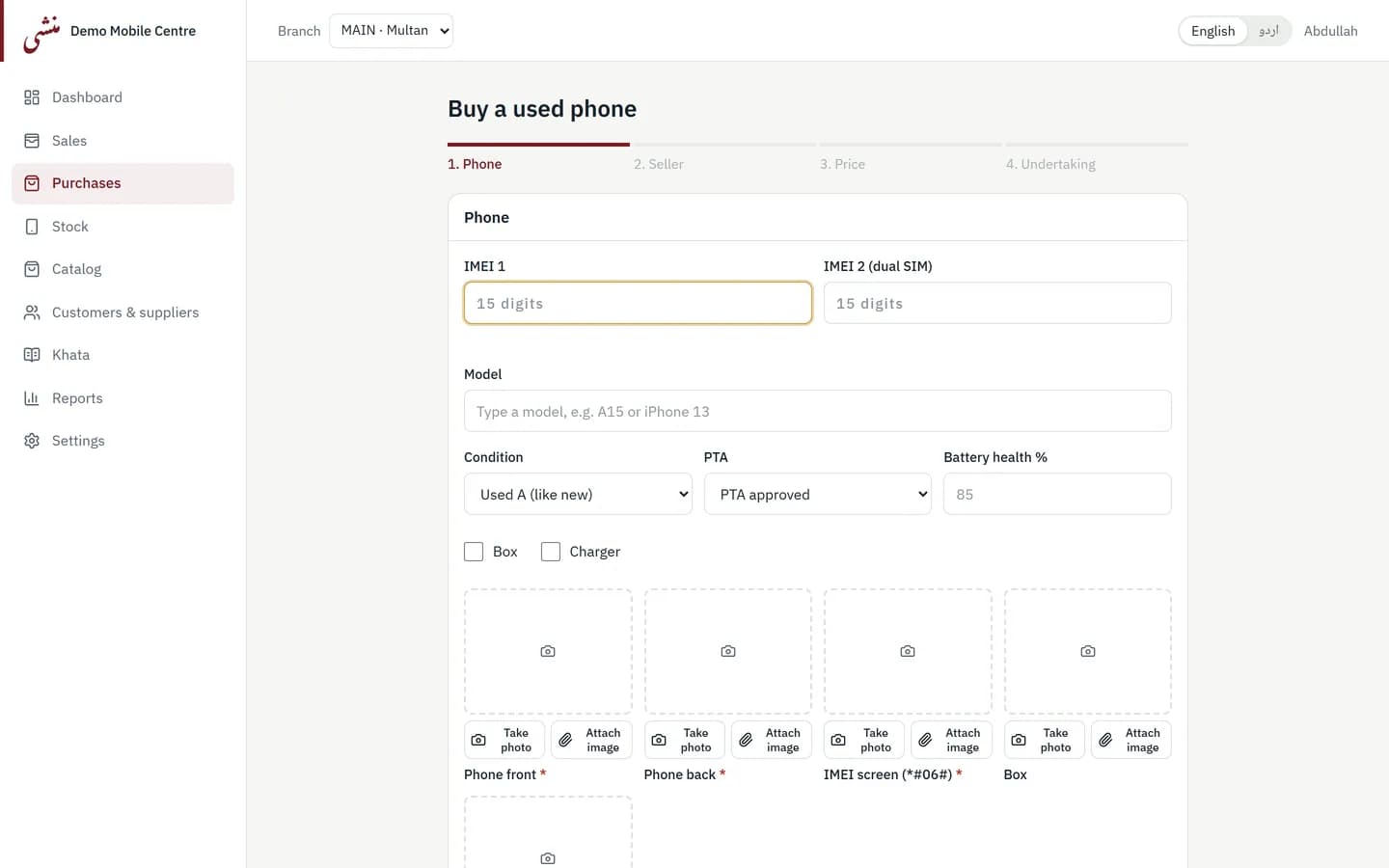
Buy a used phone in four steps: phone, seller, price and undertaking. Record the seller's CNIC number, CNIC photos and photo, add photos of the phone and its IMEI screen, and capture the seller's signature on screen. The system prints an undertaking slip in Urdu and English.

Mobile Munshi used-phone purchase form at step one of four, with IMEI fields, model, condition, PTA status, battery health and photo slots for the phone front, back and IMEI screen.
Buying a used phone: IMEI, condition, PTA status and photos, then the seller and the undertaking.

03

A fast sale counter

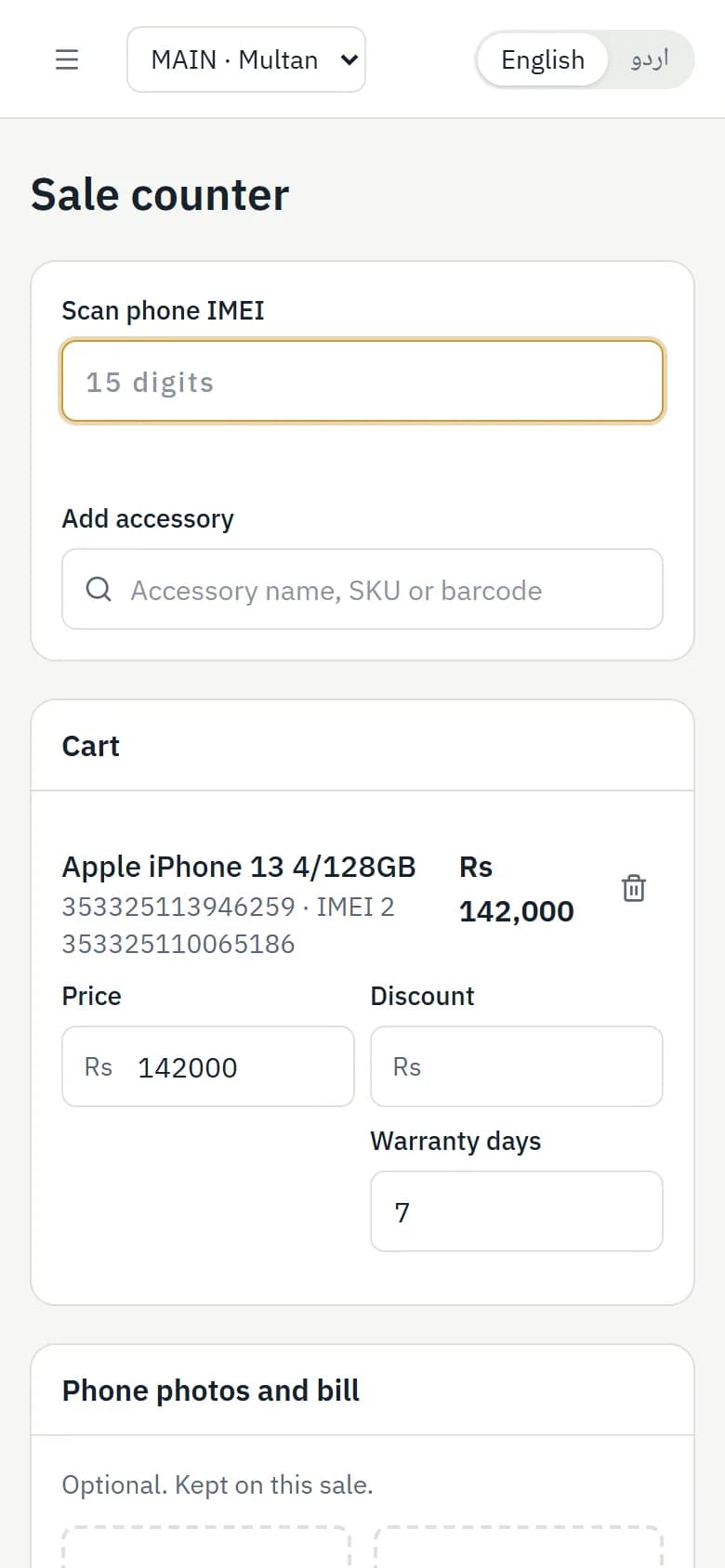
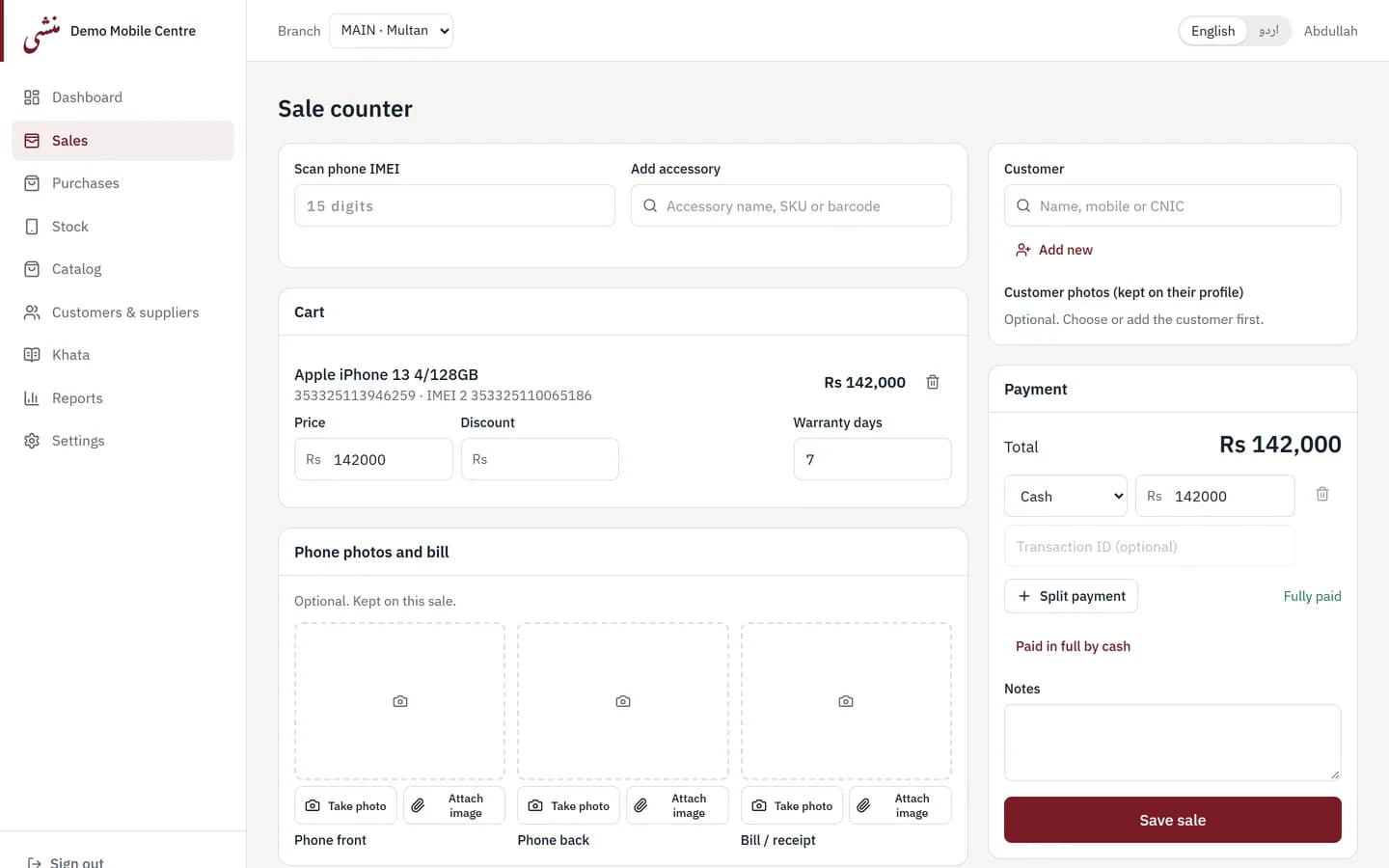
Find a phone by scanning its IMEI, or by typing the model or the last digits. Add accessories, apply discounts (staff need permission to go above the discount limit), and take payment in cash, bank transfer, Easypaisa or JazzCash, or split it across several. Print an 80 mm receipt, download an A4 PDF or share the invoice on WhatsApp.

Mobile Munshi sale counter on a phone-sized screen with an IMEI scan box, an accessory search and a cart.
The sale counter on a phone-sized screen.
Mobile Munshi sale counter with an IMEI scan box, an accessory search, a cart with an iPhone, price, discount and warranty days, and a payment panel with cash and split payment.
Scan or search a phone, then take cash, wallet or split payments.

04

Khata for customers and suppliers

Sell on credit and see what each customer owes and what you owe each supplier. Receive or make partial payments, and print a khata statement for the customer or supplier.

05

Cash book and daily closing

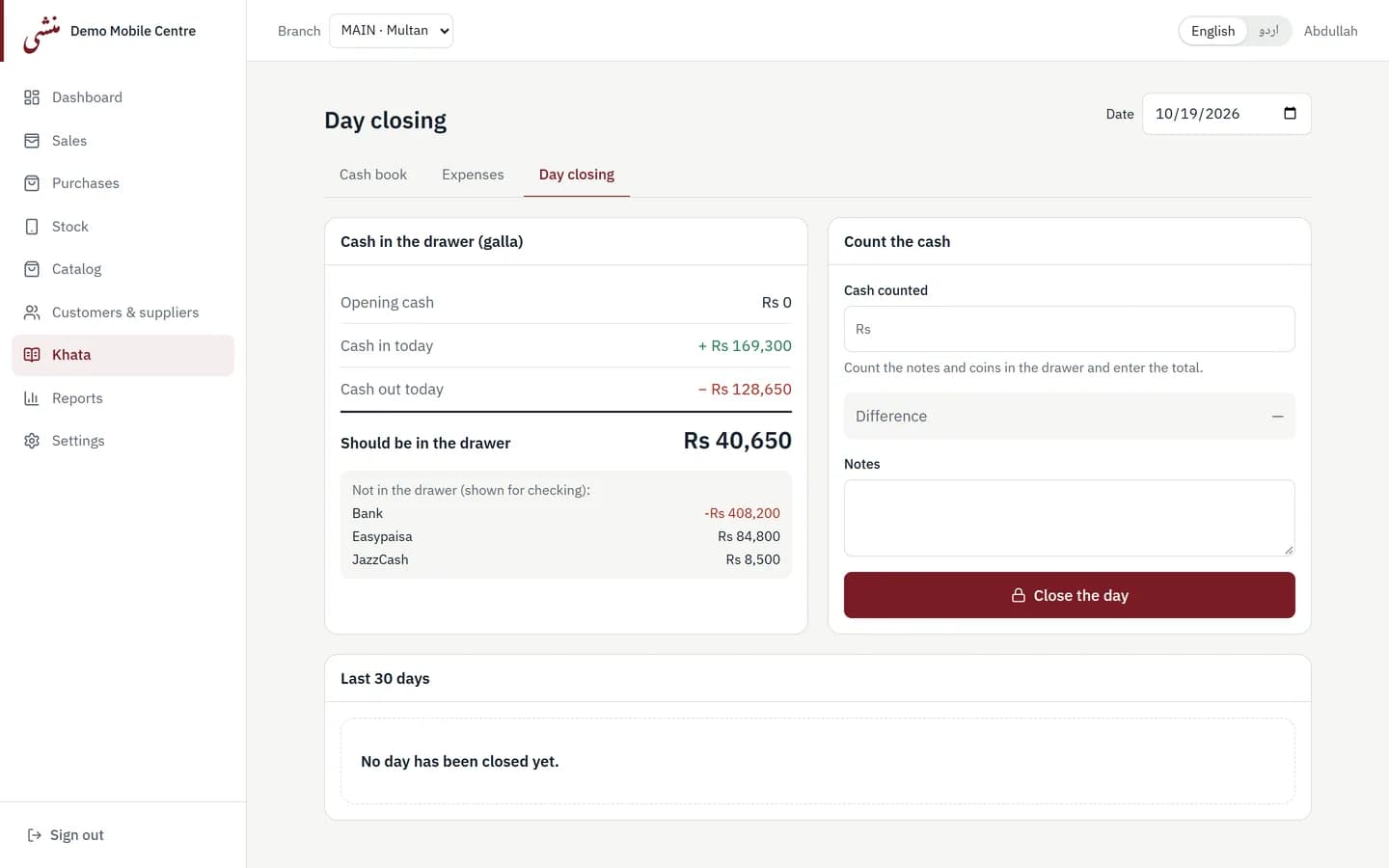
See the day's cash, bank, Easypaisa and JazzCash movements in one cash book, record expenses, and count the drawer at closing. The system shows what should be in the galla so any difference is visible the same day.

Mobile Munshi day-closing screen showing opening cash, cash in and out, the amount that should be in the drawer, and a box to count the cash.
What should be in the galla, and a place to count it.

06

Dashboard and reports

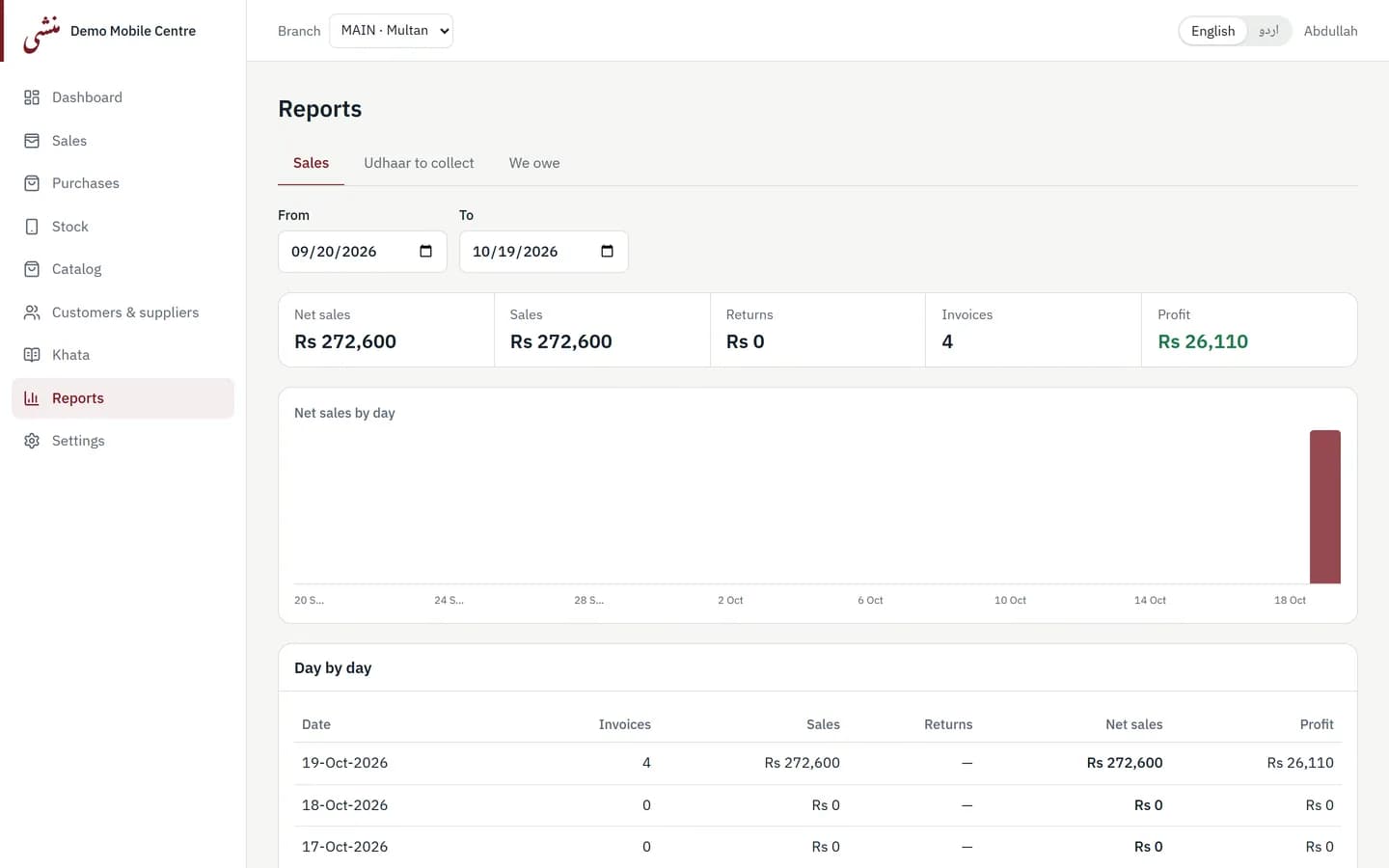
See today's sales, profit, cash in hand, udhaar to collect, what you owe suppliers, phones in stock and stock value on one screen, with a seven-day sales chart. Reports cover sales by day, udhaar to collect and amounts you owe. Profit is shown only to people with permission to see it.

Mobile Munshi sales report with net sales, returns, invoices and profit for a date range, a net-sales-by-day chart and a day-by-day table.
Sales, returns, invoices and profit by day.

07

Branches, staff and permissions

Run more than one branch from one account, with invoice numbers kept separate for each branch. Add staff as Manager or Salesman and control which branches they work in. Cost prices and profit stay hidden from staff without that permission.

08

Urdu and English, on any phone or computer

Switch the whole interface between English and Urdu, including right-to-left layouts, receipts and error messages. It runs in a web browser on a computer, tablet or phone, and can be installed on a phone's home screen as a mobile app.

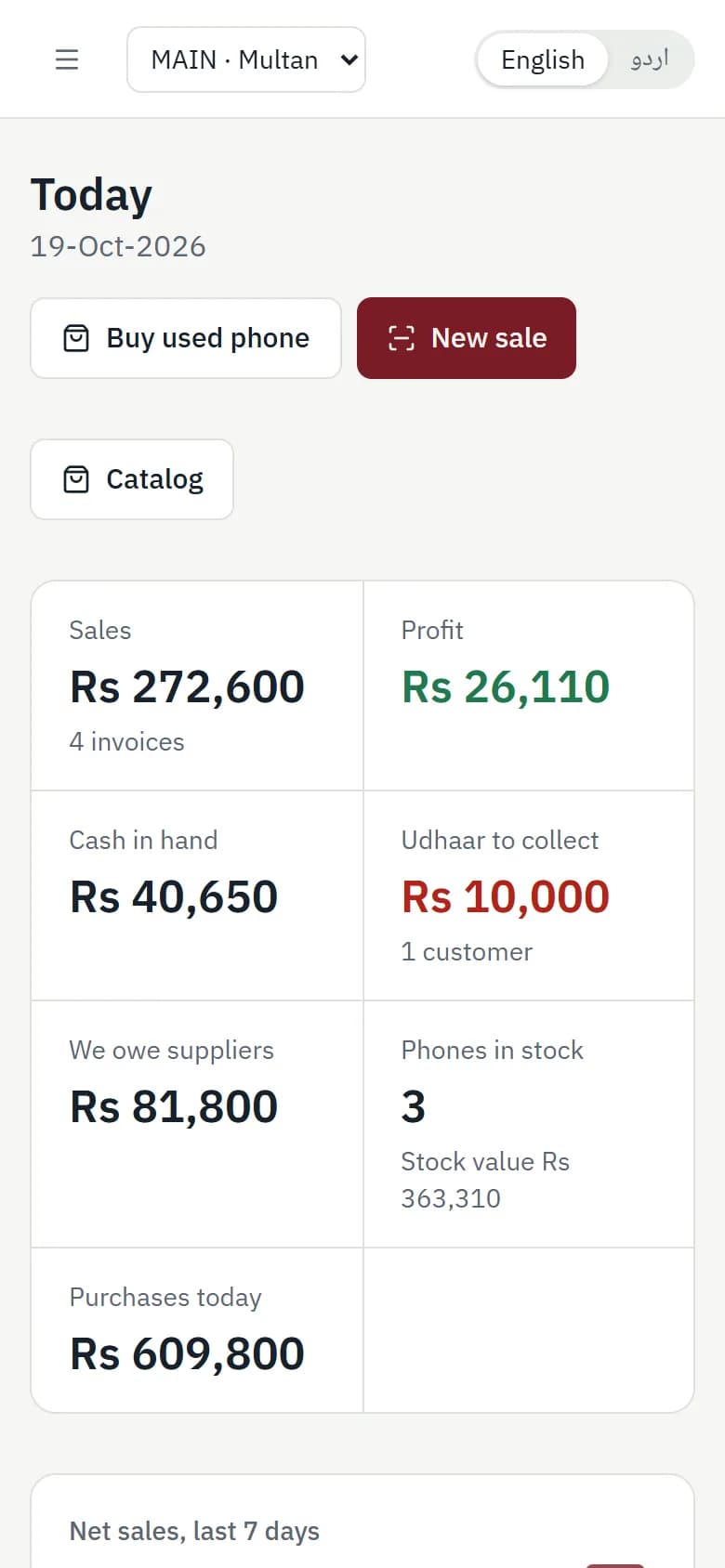
Mobile Munshi dashboard on a phone-sized screen with new sale and buy used phone buttons, and sales, profit, cash in hand and udhaar figures.
The dashboard on a phone-sized screen.
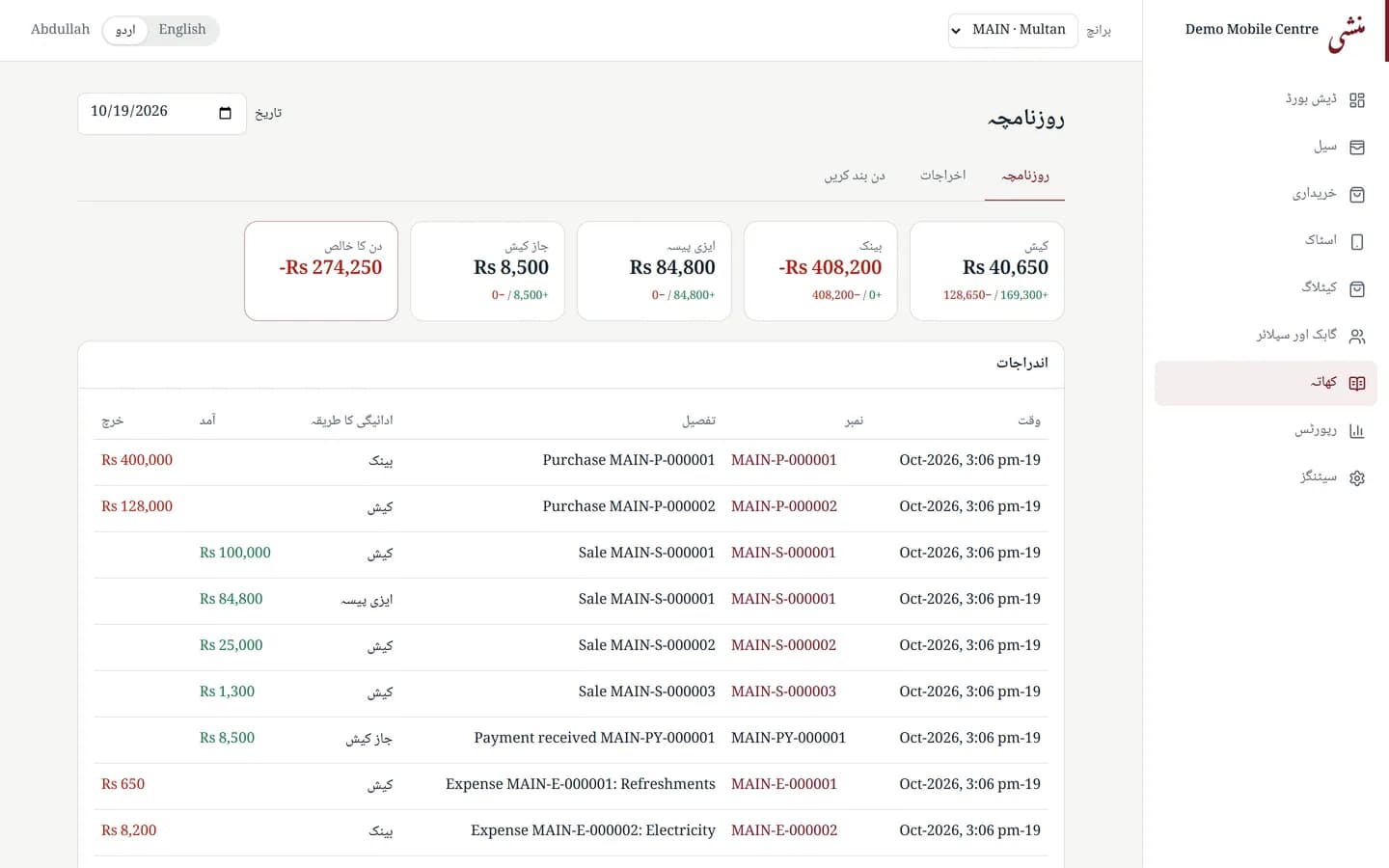
Mobile Munshi cash book in Urdu with a right-to-left layout, showing cash, bank, Easypaisa and JazzCash balances and a list of purchases, sales, payments and expenses.
The cash book in Urdu, right to left.

How it works

From buying stock to closing the day in five steps

  1. 01

    Buy stock from a supplier, or buy a used phone from a walk-in seller.

  2. 02

    Record the seller's CNIC, photos and signature, and print the undertaking.

  3. 03

    Sell by IMEI, with cash, wallet, credit or split payment.

  4. 04

    Follow what customers owe and what you owe suppliers in the khata.

  5. 05

    Count the galla and close the day.

Who it is for and who builds it

Designed and developed by CODEESK.

Mobile Munshi is made for mobile phone shops and mobile retail businesses. It brings CODEESK's business-process and software-engineering experience into a focused product for shops that buy, sell and finance phones every day.

Questions

Frequently asked questions

Does it work on a phone?

Yes. Mobile Munshi runs in a web browser on a computer, tablet or phone, and can be installed on a phone's home screen as a mobile app. You can scan an IMEI with the phone's camera. It needs an internet connection.

Does it work in Urdu?

Yes. The whole interface can be switched between English and Urdu, including right-to-left layouts, printed receipts and error messages.

What is recorded when I buy a used phone?

The purchase screen records the phone's IMEI, condition, PTA status and photos, then the seller's CNIC number, CNIC photos and photo, and an on-screen signature. It prints an undertaking slip in Urdu and English. It is a record for your own files; it does not replace legal advice about buying used phones.

Are customer CNIC details kept private?

CNIC numbers are masked on screen until someone chooses to show the full number, and CNIC and person photos stay hidden until someone chooses to show them.

Can my staff see my cost prices and profit?

Not unless you allow it. Owners can add staff as Manager or Salesman and control their access, and profit and cost prices are shown only to people with permission.

Can I run more than one branch?

Yes. One account can have several branches, and invoice numbers are kept separately for each branch. The number of branches and users available depends on your subscription plan.

How much does it cost, and can I try it first?

Prices and trial terms are not listed on this page. Ask for a demo or send an enquiry and CODEESK will share the current plans.

Plan your purchase

Questions to cover before you choose

Bring your workflow, team size and existing systems to the demo so we can discuss the right scope.

Discuss your requirements
How do I get pricing and commercial terms?

Request a quotation for your requirements. Ask for the licence or subscription model, currency, billing period, implementation charges, recurring costs and renewal or cancellation terms in writing before ordering.

What should we confirm about setup and existing data?

Share your users, branches, devices and a description of your current data. Confirm supported environments, import and export options, integrations, training and rollout responsibilities during evaluation. Data migration and custom integrations need a specific scope.

How should we evaluate hosting, security and support?

Ask which hosting options and access controls apply to your deployment, who owns and can export the data, who manages backups and recovery, and what support hours and response commitments are included. These details should be agreed for your deployment before purchase.

Can the demo cover our particular workflow?

Tell us the steps you need to see and any required reports or connections. Use the demo to distinguish included capabilities from customization and future plans, and record any gaps before agreeing the scope.

Want to see whether Mobile Munshi fits your shop?

See Mobile Munshi in action.

Book a guided demo with CODEESK. We'll walk through IMEI stock, used-phone purchases, the sale counter, khata and daily closing, and discuss how it would fit your shop.

Request a demo

Screenshots show fictional demonstration data.

Chat on WhatsApp